How to Tell If a Website Is Down or Your Network Is the Problem
Learn to diagnose whether a website is truly down globally or only unreachable from your connection, using DNS checks, traceroute, and HTTP error codes.
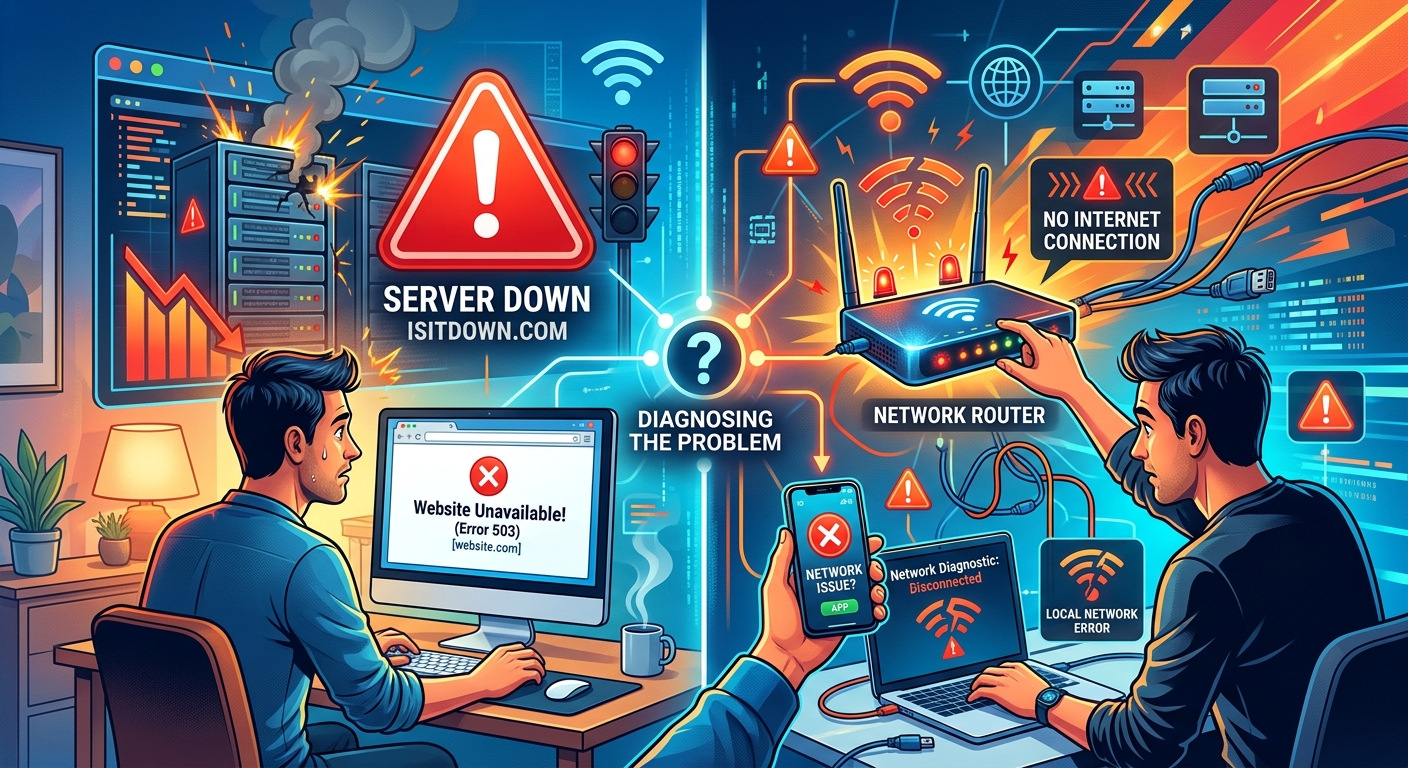
You type in a URL, hit Enter, and nothing loads. The browser spins. Then it gives up with an error message that tells you almost nothing useful. Is the site broken, or is your connection the culprit? These are two completely different problems, and treating them as the same one means wasting time in the wrong place.
Your Diagnostic Roadmap- Confirm whether the site is globally unreachable before touching your own connection settings.
- DNS failures, routing breaks, and ISP filtering are separate fault domains that each need a targeted test.
- HTTP error codes reveal exactly where in the request chain the failure occurred.
The First Question to Ask Before Running Any Tools
The most common mistake in this situation is jumping straight to your own setup. People flush DNS caches, restart routers, and swap DNS servers before they know whether any of that is relevant. The smarter move is to establish the scope of the failure first.
Checking is it down right now takes a matter of seconds and tells you immediately whether the site is unreachable globally or only from your IP address. If the result shows the site responding from servers in multiple regions, the problem is on your side of the connection. If it confirms the site is dead everywhere, no amount of local troubleshooting will fix it. That single data point collapses the diagnosis space before you run a single command.
This distinction has real consequences. A site unreachable only from your location could mean a DNS misconfiguration on your end, a routing issue between your ISP and the destination, or active filtering. A site that is down globally means the server infrastructure itself has failed, the domain has expired, or a major upstream dependency has collapsed. Knowing which category you are in tells you whether to keep investigating or simply wait.
DNS Resolution Failures: When the Address Book Goes Wrong
The Domain Name System translates hostnames like "example.com" into the IP addresses that routers actually understand. When DNS breaks, your browser never gets a valid destination address, and the connection attempt stops before it even begins.
DNS failure has a recognizable signature. Chrome typically shows "DNS_PROBE_FINISHED_NXDOMAIN" and Firefox returns "Server Not Found." This is meaningfully different from a connection timeout, where the browser obtained an address but never got a response from that address.
Signs that point to a DNS problem rather than anything else:
- The error message explicitly mentions DNS or "server not found"
- Other sites load without issue, ruling out a complete outage
- Switching to a different DNS resolver (such as 8.8.8.8 or 1.1.1.1) restores access to the site
- Running
nslookup example.comreturns NXDOMAIN or no answer from your current resolver
DNS failures can originate at your local resolver, at your ISP's upstream DNS infrastructure, or at the site's own authoritative nameservers. If the domain's DNS records have expired or been misconfigured, everyone gets NXDOMAIN, not just you. If only you get it, the failure is local. The nslookup test will tell you which resolver is returning what, and comparing that to results from a public resolver confirms whether the issue is isolated to your network.
Routing Problems and What a Traceroute Actually Tells You
Once DNS resolves correctly, your packets need to travel through a series of routers to reach the destination server. Each hop along that path is a potential failure point. Traceroute (called tracert on Windows) maps that path and flags where things stop or slow.
Reading traceroute output requires patience. Asterisks at a given hop mean that router is not responding to the probe packets, which may or may not indicate a genuine problem. Many network operators block traceroute probes deliberately. What matters most is whether every hop beyond a certain point returns asterisks and the final destination is never reached. That pattern points to a real routing failure at or after that node.
At the internet-scale level, routing decisions are governed by the Border Gateway Protocol. As defined in the BGP protocol standard, each autonomous system manages its own routing table, and withdrawing or misadvertising a route can make a destination vanish from entire regions of the internet without the destination server going offline at all. From your vantage point it looks like the site is down, but it is actually a routing advertisement problem that no local fix will resolve.
ISP Filtering: When the Block Is Intentional
Some sites appear unreachable not because they are down but because something between you and them is actively preventing access. ISP-level filtering happens on corporate networks, educational institutions, and in jurisdictions with regulated internet access. It also sometimes occurs on consumer connections following legal orders.
A structured test sequence helps identify filtering:
- Try the same site over a mobile data connection or a VPN endpoint outside your ISP's network. If it loads there, your ISP's path is the variable.
- Run nslookup and check whether the site resolves at all. DNS-based blocks either return NXDOMAIN or redirect to a block-page IP.
- If DNS resolves to a legitimate IP, try a direct TCP connection using
curl -v https://example.comand watch whether the TLS handshake completes or the connection is simply dropped. - If the connection drops at the packet level despite a valid DNS response, the block is applied to the IP range itself, not just to the domain name.
DNS-based filtering is the weakest form of blocking, since switching resolvers bypasses it completely. Packet-level IP filtering requires routing your traffic through a different network path to get around it. Recognizing which type applies determines what action, if any, is actually available to you.
HTTP Status Codes and What They Mean for Your Diagnosis
When your request gets past DNS, routing, and any potential filtering, the server sends back an HTTP status code. These codes carry precise, standardized meanings that tell you exactly where in the server-side stack the problem occurred.
The codes that signal server-side trouble:
- 500 Internal Server Error means the server encountered an unexpected condition it could not handle, typically a code or configuration bug.
- 502 Bad Gateway means a proxy or load balancer received an invalid response from an upstream server behind it.
- 503 Service Unavailable means the server is temporarily unable to process requests, usually from overload or scheduled maintenance.
- 504 Gateway Timeout means an upstream backend server failed to respond in time, pointing to application or database layer failure rather than the front-facing server.
If you receive any of these codes, your network path to the site is intact. The site is technically reachable, but the application layer is failing. That is a completely different category from a connection that never establishes at all. A browser-level timeout before any HTTP response means the packet either never arrived or was never answered, which points back to routing or filtering, not the application.
When Failures Cascade Across Multiple Layers
Real outages do not always respect clean fault boundaries. A cloud provider incident can simultaneously affect DNS, routing, and application health because all three may depend on infrastructure in the same data center. What each diagnostic tool reports in those situations depends on where you sit relative to the outage and which path your packets happen to take.
When everything seems wrong at once, the methodology stays the same. Start at the outermost layer. If the site is globally unreachable, your local network configuration is irrelevant and there is nothing to troubleshoot. If the site is only unreachable for your connection, work inward through DNS, routing, and filtering in that order. Each test eliminates an entire category before you spend time on the next one.
Opening a browser's developer tools during a failing load can compress several of these steps. The Network tab will show whether the failure happened at DNS lookup, TCP connection establishment, or TLS negotiation. A failure at DNS means you never got an address. A failure at TCP means you got an address but could not reach it. A failure at TLS means you reached the server but could not establish a secure session. Each of those is a different investigation.
Pinpointing the Fault Without Chasing Ghosts
The aim of this kind of diagnosis is not to run every available tool. It is to stop the moment the evidence is sufficient. Once you confirm the site is unreachable only from your connection, you have already reduced the candidate list to three things: your DNS resolution, your network path to the destination, and any filtering applied between your device and the site. Each of those has a fast, targeted test. The moment one test returns a clear result, the others become lower priority.
If the global availability check confirms a worldwide outage, none of the local tests matter. The site is broken at its source. Checking a status page maintained by the service is useful at that point, but there is nothing you can do on your end except wait for the operator to fix it.
Working through a connection failure in the right order takes discipline. The temptation is to start with what is most familiar or most accessible, not what is most diagnostic. Resisting that temptation and letting the evidence guide the next step is the difference between a focused five-minute resolution and an hour of guesswork that leads nowhere.